Getting Started with MkDocs
An introductory tutorial!
An introductory tutorial!
Getting Started with MkDocs!
Installation⚓︎
Installation.
To install MkDocs, run the following command from the command line:
For more details, see the Installation Guide.
Creating a New Project⚓︎
Creating a New Project
Getting started is super easy. To create a new project, run the following command from the command line:
Take a moment to review the initial project that has been created for you.
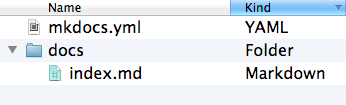
There's a single configuration file named mkdocs.yml, and a folder named docs that will contain your documentation source files (docs is the default value for the docs_dir configuration setting). Right now the docs folder just contains a single documentation page, named index.md.
MkDocs comes with a built-in dev-server that lets you preview your documentation as you work on it. Make sure you're in the same directory as the mkdocs.yml configuration file, and then start the server by running the mkdocs serve command:
$ mkdocs serve
INFO    -  Building documentation...
INFO    -  Cleaning site directory
INFO    -  Documentation built in 0.22 seconds
INFO    -  [15:50:43] Watching paths for changes: 'docs', 'mkdocs.yml'
INFO    -  [15:50:43] Serving on http://127.0.0.1:8000/
Open up http://127.0.0.1:8000/ in your browser, and you'll see the default home page being displayed:
Dev-Server & Auto-Reloading
The dev-server also supports auto-reloading, and will rebuild your documentation whenever anything in the configuration file, documentation directory, or theme directory changes.
Open the docs/index.md document in your text editor of choice, change the initial heading to MkLorum, and save your changes. Your browser will auto-reload and you should see your updated documentation immediately.
Now try editing the configuration file: mkdocs.yml. Change the site_name setting to MkLorum and save the file.
Your browser should immediately reload, and you'll see your new site name take effect.
Note!
The site_name configuration option is the only required option in your configuration file.
Adding Pages⚓︎
Building the Site Structure
Now add a second page to your documentation:
As our documentation site will include some navigation headers, you may want to edit the configuration file and add some information about the order, title, and nesting of each page in the navigation header by adding a nav setting:
Navigation Result
Save your changes and you'll now see a navigation bar with Home and About items on the left as well as Search, Previous, and Next items on the right.
Browse Menu Items
Try the menu items and navigate back and forth between pages. Then click on Search. A search dialog will appear, allowing you to search for any text on any page. Notice that the search results include every occurrence of the search term on the site and links directly to the section of the page in which the search term appears. You get all of that with no effort or configuration on your part!
Theming Our Documentation⚓︎
Changing the Look and Feel
Now change the configuration file to alter how the documentation is displayed by changing the theme. Edit the mkdocs.yml file and add a theme setting:
Theme Updated
Save your changes, and you'll see the ReadTheDocs theme being used.
Changing the Favicon Icon⚓︎
Changing the Favicon Icon
By default, MkDocs uses the MkDocs favicon icon. To use a different icon, create an img subdirectory in the docs directory and copy your custom favicon.ico file to that directory. MkDocs will automatically detect and use that file as your favicon icon.
Building The Site⚓︎
Building The Site
That's looking good. You're ready to deploy the first pass of your MkLorum documentation. First build the documentation:
This will create a new directory, named site. Take a look inside the directory:
Notice that your source documentation has been output as two HTML files named index.html and about/index.html. You also have various other media that's been copied into the site directory as part of the documentation theme. You even have a sitemap.xml file and mkdocs/search_index.json.
Source Control Best Practices
If you're using source code control such as git you probably don't want to check your documentation builds into the repository. Add a line containing site/ to your .gitignore file.
If you're using another source code control tool you'll want to check its documentation on how to ignore specific directories.
Other Commands and Options⚓︎
Other Commands and Options
There are various other commands and options available. For a complete list of commands, use the --help flag:
Deploying⚓︎
Hosting Your Site
The documentation site that you just built only uses static files so you'll be able to host it from pretty much anywhere. Simply upload the contents of the entire site directory to wherever you're hosting your website from and you're done.
Host-Specific Guides
For specific instructions on a number of common hosts, see the Deploying your Docs page.
Getting Help⚓︎
Documentation & Community
See the User Guide for more complete documentation of all of MkDocs' features.
Technical Support
To get help with MkDocs, please use the GitHub discussions or GitHub issues.
MkDocs⚓︎
Project Documentation with Markdown
MkDocs is a fast, simple and downright gorgeous static site generator that's geared towards building project documentation.
Getting Started
Documentation source files are written in Markdown, and configured with a single YAML configuration file. Start by reading the introductory tutorial, then check the User Guide for more information.
Features⚓︎
Great Themes Available⚓︎
Stunning Visuals
There's a stack of good looking themes available for MkDocs. Choose between the built-in themes: mkdocs and readthedocs.
Explore More
Select one of the third-party themes on the MkDocs Themes wiki, the MkDocs Catalog, or even build your own.
Easy to Customize⚓︎
Make It Yours
Get your project documentation looking just the way you want it by customizing your theme and installing plugins.
Advanced Tweaks
Modify Markdown's behavior with Markdown extensions. Many other configuration options are available to fine-tune the experience.
Preview your Site as you work!⚓︎
Real-Time Feedback
The built-in dev-server allows you to preview your documentation as you're writing it.
Auto-Reload
It will even auto-reload and refresh your browser whenever you save your changes, so you never have to manually refresh to see your edits.
Host Anywhere⚓︎
Static & Portable
MkDocs builds completely static HTML sites. Because there is no database or server-side code, your site is incredibly fast and secure.
Deployment Options
You can host your docs on GitHub Pages, Amazon S3, or anywhere else you choose.
Reference: Version Control Installation
This block contains the installation commands for Mercurial and Git across various operating systems. Use this for quick copy-pasting into documentation.
Formatting Warning
The caption/description inside an admonition can stretch over multiple lines, but it must end with a blank line before an image or code block. Otherwise, the following content will be interpreted as part of the text string.