⚫ The Ultimate Markdown Cheat Sheet ⚫

Important
Check out the official documentation on GitHub to learn more about writing and formatting syntax. Additionally, you can read the latest updates and features on Markdown by visiting the GitHub blog.
For hands-on learning:
Explore the module on Microsoft Learn.
-
Introduction
View IntroductionMarkdown is a way of writing rich-text content using plain text formatting syntax.
-
Headings
View HeadingsOrganise your content levels using standard ATX-style hash headings.
-
Text styles
View StylesAn overview of how to apply different visual formats to your text.
-
Normal
View NormalStandard body text formatting for general paragraphs.
-
Bold
View BoldUse double asterisks to give your text strong emphasis.
-
Italic
View ItalicUse single underscores or asterisks for subtle emphasis.
-
Bold and Italic
View CombinedCombine both styles for maximum impact on specific words.
-
Blockquotes
View BlockquotesHighlight external quotes or callouts using the
>syntax. -
Monospaced
View MonospacedFixed-width text often used for technical terms or code.
-
Underlined
View UnderlinedApplying underlines to text via HTML or specific extensions.
-
Strike-through
View StrikeDraw a line through text to indicate deletions or corrections.
-
Boxed
View BoxedWraps text in a visual container or border.
-
Subscript
View SubscriptPosition text slightly below the normal line (e.g., H₂O).
-
Superscript
View SuperscriptPosition text slightly above the normal line (e.g., X²).
-
Small Text
View SmallRender text at a reduced size for fine print or captions.
-
Text Color
View ColorChanging the foreground color of your text elements.
-
Multiline
View MultilineHandling text blocks that span across several lines.
-
Syntax Highlighting
View SyntaxApplying colour and formatting to various prog languages.
-
Inline code
View InlineEmbedding short snippets of code within a sentence.
-
Code block
View BlockDedicated sections for multi-line source code.
-
Diff Code block
View DiffVisualising changes, additions, and deletions in code.
-
Alignments
View AlignmentsPositioning text to the left, right, or center.
-
Tables
View TablesOrganising data into structured rows and columns.
-
Links
View LinksHyperlinking text to URLs or internal document anchors.
-
Inline Link
View InlineStandard links defined immediately with the text.
-
Reference Link
View RefDefining link destinations elsewhere in the document.
-
Footnote
View FootnoteAdding citations or extra notes at the bottom of the page.
-
Relative Link
View RelativeLinking to other files within the same project or folder.
-
Auto Link
View AutoAutomatic conversion of URLs and emails into clickable links.
-
Section Link
View SectionJump directly to a specific heading or anchor on the page.
-
Hover
View HoverAdding tooltips or titles that appear on mouseover.
-
Enclosed
View EnclosedWrapping links within specific characters or delimiters.
-
Highlight & Link
View LinkApplying highlights to text that also functions as a link.
-
Images
View ImagesEmbedding and formatting visual assets in your content.
-
Theme
View ThemeHandling image styles based on user preferences.
-
Picture tag
View PictureUsing HTML5 picture tags for advanced image handling.
-
Dark/Light mode
View ModeSwapping images based on the active theme.
-
Group
View GroupDisplaying multiple images together in a gallery or set.
-
Badges
View BadgesSmall status indicators often used for versioning or CI/CD.
-
Videos
View VideosEmbedding external video content or local media files.
-
Lists
View ListsStructuring content using various list types.
-
Ordered
View OrderedCreating sequential, numbered lists of items.
-
Unordered
View UnorderedBullet-point lists for non-sequential information.
-
Task
View TasksInteractive or static checklists for project tracking.
-
Buttons
View ButtonsCreating call-to-action buttons within your documentation.
-
Emoji Button
View ButtonEnhancing buttons with decorative or functional icons.
-
Collapsible
View CollapsibleUsing details and summary tags to hide/show content.
-
Horizontal Rule
View RuleInserting thematic breaks or dividers between sections.
-
Diagrams
View DiagramsFlowcharts and sequence diagrams using Mermaid or similar.
-
Mathematics
View MathRendering LaTeX or MathJax equations and formulas.
-
Alerts
View AlertsWarning, info, and success callouts (admonitions).
-
Mentions
View MentionsSyntax for tagging specific users or teams.
-
PRs & Issues
View RefsAutomatically linking to repository issues and pull requests.
-
Color models
View ModelsWorking with HEX, RGB, and HSL color values.
-
View Code
View CodeTechniques for displaying raw source code to users.
-
Code in titles
View TitlesUsing backticks within header levels.
-
Ref Labels
View LabelsAdvanced usage of labels for document cross-referencing.
-
Miscellaneous
View MiscA collection of extra tips and less common features.
-
Comments
View CommentsAdding hidden developer notes within the source file.
-
Escaping
View EscapingUsing backslashes to render literal Markdown characters.
-
Emojis
View EmojisInserting icons and smileys using shortcode syntax.
-
Line break
View BreakForcing new lines without starting a new paragraph.
-
Back to top
View TopAdding navigation links to return to the page start.
-
Bitbucket
View BitbucketSpecific Markdown flavors and features for Bitbucket.
-
Azure DevOps
View AzureGuide to Markdown usage within Azure Project Wikis.
-
MDX
View MDXUsing JSX components directly inside your Markdown files.
-
Tools
View ToolsRecommended editors and plugins for MD development.
-
MaterialX Start Page
Return toBack to the project's main landing page.
-
MkDocs➻MaterialX
Return to MaterialXBack to the root documentation.
Introduction⚓︎
Introduction
Markdown is a way of writing rich-text (formatted text) content using plain text formatting syntax. It is also a tool that converts the plain text formatting to HTML.
- 2004: John Gruber developed Markdown.
- 2014: CommonMark was established as a standard specification for Markdown to resolve inconsistencies and ambiguities in Markdown implementations. This initiative was spearheaded by John MacFarlane and backed by other Markdown enthusiasts to ensure a reliable and consistent specification.
This guide will provide you with a comprehensive understanding of the key commands in GitHub Flavored Markdown (GFM), it is a strict superset of CommonMark. You can read the full article, The Ultimate Markdown Cheat Sheet on Medium.
Headings⚓︎
Headings
Headings
<h1>Heading 1</h1>
<h2>Heading 2</h2>
<h3>Heading 3</h3>
<h4>Heading 4</h4>
<h5>Heading 5</h5>
<h6>Heading 6</h6>
Headings
Headings
Renders as: Heading 1 (largest) → Heading 6 (smallest)
Text Styles⚓︎
Text styles
Normal
The quick brown fox jumps over the lazy dog.
Text styles
Bold
Mac: command+B
Windows: control+B
Italic⚓︎
Italic
Mac: command+I
Windows: control+I
*The quick brown fox jumps over the lazy dog.*
_The quick brown fox jumps over the lazy dog._
<em>The quick brown fox jumps over the lazy dog.</em>
The quick brown fox jumps over the lazy dog.
The quick brown fox jumps over the lazy dog.
The quick brown fox jumps over the lazy dog.
Bold and Italic⚓︎
Bold and Italic
**_The quick brown fox jumps over the lazy dog._**
***The quick brown fox jumps over the lazy dog.***
<strong><em>The quick brown fox jumps over the lazy dog.</em></strong>
The quick brown fox jumps over the lazy dog.
The quick brown fox jumps over the lazy dog.
The quick brown fox jumps over the lazy dog.
Blockquotes⚓︎
Blockquotes
Mac: command+shift+.
Windows: control+shift+.
> The quick brown fox jumps over the lazy dog.
>
> The quick brown fox jumps over the lazy dog.
>
> The quick brown fox jumps over the lazy dog.
> The quick brown fox jumps over the lazy dog.
>> The quick brown fox jumps over the lazy dog.
>>> The quick brown fox jumps over the lazy dog.
The quick brown fox jumps over the lazy dog.
The quick brown fox jumps over the lazy dog.
The quick brown fox jumps over the lazy dog.
The quick brown fox jumps over the lazy dog.
The quick brown fox jumps over the lazy dog.
The quick brown fox jumps over the lazy dog.
The quick brown fox jumps over the lazy dog.
The quick brown fox jumps over the lazy dog.
Monospaced⚓︎
Monospaced
The quick brown fox jumps over the lazy dog.
Underlined⚓︎
Underlined
The quick brown fox jumps over the lazy dog.
Strike-through⚓︎
Strike-through
The quick brown fox jumps over the lazy dog.
Lorem ipsum dolor sit amet, consectetur adipiscing elit. ~~Sed do eiusmod tempor incididunt ut labore et dolore magna aliqua.~~ Ut enim ad minim veniam, quis nostrud exercitation ullamco laboris nisi ut aliquip ex ea commodo consequat. Duis aute irure dolor in reprehenderit in voluptate velit esse cillum dolore eu fugiat nulla pariatur. ~~Excepteur sint occaecat cupidatat non proident, sunt in culpa qui officia deserunt mollit anim id est laborum.~~
Lorem ipsum dolor sit amet, consectetur adipiscing elit. Sed do eiusmod tempor incididunt ut labore et dolore magna aliqua. Ut enim ad minim veniam, quis nostrud exercitation ullamco laboris nisi ut aliquip ex ea commodo consequat. Duis aute irure dolor in reprehenderit in voluptate velit esse cillum dolore eu fugiat nulla pariatur. Excepteur sint occaecat cupidatat non proident, sunt in culpa qui officia deserunt mollit anim id est laborum.
Boxed⚓︎
Boxed
| The quick brown fox jumps over the lazy dog. |
Subscript⚓︎
Subscript
log2(x)
Subscript The quick brown fox jumps over the lazy dog.
Superscript⚓︎
Superscript
2 <sup>53-1</sup> and -2 <sup>53-1</sup>
Superscript <sup>The quick brown fox jumps over the lazy dog.</sup>
2 53-1 and -2 53-1
Superscript The quick brown fox jumps over the lazy dog.
Small Text⚓︎
Small Text
Start The quick brown fox jumps over the lazy dog. End
Start The quick brown fox jumps over the lazy dog. End
Text Color⚓︎
Using MathJax syntax:
| Color Name | Code Syntax | Example (Hover for Hex) |
|---|---|---|
| Apricot | <font color="#FBB982">...</font> |
The quick brown fox jumps over the lazy dog. |
| Aquamarine | <font color="#00B5BE">...</font> |
The quick brown fox jumps over the lazy dog. |
| Bittersweet | <font color="#C04F17">...</font> |
The quick brown fox jumps over the lazy dog. |
| Black | <font color="#221E1F">...</font> |
The quick brown fox jumps over the lazy dog. |
| Blue | <font color="#2D2F92">...</font> |
The quick brown fox jumps over the lazy dog. |
| BlueGreen | <font color="#00B3B8">...</font> |
The quick brown fox jumps over the lazy dog. |
| BlueViolet | <font color="#473992">...</font> |
The quick brown fox jumps over the lazy dog. |
| BrickRed | <font color="#B6321C">...</font> |
The quick brown fox jumps over the lazy dog. |
| Brown | <font color="#792500">...</font> |
The quick brown fox jumps over the lazy dog. |
| BurntOrange | <font color="#F7921D">...</font> |
The quick brown fox jumps over the lazy dog. |
| CadetBlue | <font color="#74729A">...</font> |
The quick brown fox jumps over the lazy dog. |
| CarnationPink | <font color="#F282B4">...</font> |
The quick brown fox jumps over the lazy dog. |
| Cerulean | <font color="#00A2E3">...</font> |
The quick brown fox jumps over the lazy dog. |
| CornflowerBlue | <font color="#41B0E4">...</font> |
The quick brown fox jumps over the lazy dog. |
| Cyan | <font color="#00AEEF">...</font> |
The quick brown fox jumps over the lazy dog. |
| Dandelion | <font color="#FDBC42">...</font> |
The quick brown fox jumps over the lazy dog. |
| DarkOrchid | <font color="#A4538A">...</font> |
The quick brown fox jumps over the lazy dog. |
| Emerald | <font color="#00A99D">...</font> |
The quick brown fox jumps over the lazy dog. |
| ForestGreen | <font color="#009B55">...</font> |
The quick brown fox jumps over the lazy dog. |
| Fuchsia | <font color="#8C368C">...</font> |
The quick brown fox jumps over the lazy dog. |
| Goldenrod | <font color="#FFDF42">...</font> |
The quick brown fox jumps over the lazy dog. |
| Gray | <font color="#949698">...</font> |
The quick brown fox jumps over the lazy dog. |
| Green | <font color="#00A64F">...</font> |
The quick brown fox jumps over the lazy dog. |
| GreenYellow | <font color="#DFE674">...</font> |
The quick brown fox jumps over the lazy dog. |
| JungleGreen | <font color="#00A99A">...</font> |
The quick brown fox jumps over the lazy dog. |
| Lavender | <font color="#F49EC4">...</font> |
The quick brown fox jumps over the lazy dog. |
| LimeGreen | <font color="#8DC73E">...</font> |
The quick brown fox jumps over the lazy dog. |
| Magenta | <font color="#EC008C">...</font> |
The quick brown fox jumps over the lazy dog. |
| Mahogany | <font color="#A9341F">...</font> |
The quick brown fox jumps over the lazy dog. |
| Maroon | <font color="#AF3235">...</font> |
The quick brown fox jumps over the lazy dog. |
| Melon | <font color="#F89E7B">...</font> |
The quick brown fox jumps over the lazy dog. |
| MidnightBlue | <font color="#006795">...</font> |
The quick brown fox jumps over the lazy dog. |
| Mulberry | <font color="#A93C93">...</font> |
The quick brown fox jumps over the lazy dog. |
| NavyBlue | <font color="#006EB8">...</font> |
The quick brown fox jumps over the lazy dog. |
| OliveGreen | <font color="#3C8031">...</font> |
The quick brown fox jumps over the lazy dog. |
| Orange | <font color="#F58137">...</font> |
The quick brown fox jumps over the lazy dog. |
| OrangeRed | <font color="#ED135A">...</font> |
The quick brown fox jumps over the lazy dog. |
| Orchid | <font color="#AF72B0">...</font> |
The quick brown fox jumps over the lazy dog. |
| Peach | <font color="#F7965A">...</font> |
The quick brown fox jumps over the lazy dog. |
| Periwinkle | <font color="#7977B8">...</font> |
The quick brown fox jumps over the lazy dog. |
| PineGreen | <font color="#008B72">...</font> |
The quick brown fox jumps over the lazy dog. |
| Plum | <font color="#92268F">...</font> |
The quick brown fox jumps over the lazy dog. |
| ProcessBlue | <font color="#00B0F0">...</font> |
The quick brown fox jumps over the lazy dog. |
| Purple | <font color="#99479B">...</font> |
The quick brown fox jumps over the lazy dog. |
| RawSienna | <font color="#974006">...</font> |
The quick brown fox jumps over the lazy dog. |
| Red | <font color="#ED1B23">...</font> |
The quick brown fox jumps over the lazy dog. |
| RedOrange | <font color="#F26035">...</font> |
The quick brown fox jumps over the lazy dog. |
| RedViolet | <font color="#A1246B">...</font> |
The quick brown fox jumps over the lazy dog. |
| Rhodamine | <font color="#EF559F">...</font> |
The quick brown fox jumps over the lazy dog. |
| RoyalBlue | <font color="#0071BC">...</font> |
The quick brown fox jumps over the lazy dog. |
| RoyalPurple | <font color="#613F99">...</font> |
The quick brown fox jumps over the lazy dog. |
| RubineRed | <font color="#ED017D">...</font> |
The quick brown fox jumps over the lazy dog. |
| Salmon | <font color="#F69289">...</font> |
The quick brown fox jumps over the lazy dog. |
Multiline⚓︎
Multiline
The quick\
brown fox\
jumps over\
the lazy dog.
Syntax Highlighting⚓︎
Inline Code⚓︎
Inline Code
A class method is an instance method of the class object. When a new class is created, an object of type Class is initialized and assigned to a global constant (Mobile in this case).
You can use command + e on Mac or control + e on Windows to insert inline code.
Code Block⚓︎
Code Block
public static String monthNames[] = {"January", "February", "March", "April", "May", "June", "July", "August", "September", "October", "November", "December"};
```
public static String monthNames[] = {"January", "February", "March", "April", "May", "June", "July", "August", "September", "October", "November", "December"};
```
public static String monthNames[] = {"January", "February", "March", "April", "May", "June", "July", "August", "September", "October", "November", "December"};
```java
public static String monthNames[] = {"January", "February", "March", "April", "May", "June", "July", "August", "September", "October", "November", "December"};
```
Refer to this and this GitHub document to find all the valid keywords.
Diff Code Block⚓︎
Diff Code Block
## git diff a/test.txt b/test.txt
diff --git a/a/test.txt b/b/test.txt
index 309ee57..c995021 100644
--- a/a/test.txt
+++ b/b/test.txt
@@ -1,8 +1,6 @@
-The quick brown fox jumps over the lazy dog
+The quick brown fox jumps over the lazy cat

 a
-b
 c
 d
-e
 f
Alignments⚓︎
Alignments
Alignments
Click To See Code
Alignments
Click To See Code
Tables⚓︎
Tables
<table>
  <tr>
    <td width="33%">The quick brown fox...</td>
    <td width="33%">The quick brown fox...</td>
    <td width="33%">The quick brown fox...</td>
  </tr>
</table>
| The quick brown fox jumps over the lazy dog. | The quick brown fox jumps over the lazy dog. | The quick brown fox jumps over the lazy dog. |
Code:Tables Below
| Default | Left align | Center align | Right align |
| - | :- | :-: | -: |
| 9999999999 | 9999999999 | 9999999999 | 9999999999 |
| 999999999 | 999999999 | 999999999 | 999999999 |
| 99999999 | 99999999 | 99999999 | 99999999 |
| 9999999 | 9999999 | 9999999 | 9999999 |
| Default    | Left align | Center align | Right align |
| ---------- | :--------- | :----------: | ----------: |
| 9999999999 | 9999999999 | 9999999999   | 9999999999  |
| 999999999  | 999999999  | 999999999    | 999999999   |
| 99999999   | 99999999   | 99999999     | 99999999    |
| 9999999    | 9999999    | 9999999      | 9999999     |
| Default | Left align | Center align | Right align |
|---|---|---|---|
| 9999999999 | 9999999999 | 9999999999 | 9999999999 |
| 999999999 | 999999999 | 999999999 | 999999999 |
| 99999999 | 99999999 | 99999999 | 99999999 |
| 9999999 | 9999999 | 9999999 | 9999999 |
| Default | Left align | Center align | Right align |
|---|---|---|---|
| 9999999999 | 9999999999 | 9999999999 | 9999999999 |
| 999999999 | 999999999 | 999999999 | 999999999 |
| 99999999 | 99999999 | 99999999 | 99999999 |
| 9999999 | 9999999 | 9999999 | 9999999 |
| Default | Left align | Center align | Right align |
|---|---|---|---|
| 9999999999 | 9999999999 | 9999999999 | 9999999999 |
| 999999999 | 999999999 | 999999999 | 999999999 |
| 99999999 | 99999999 | 99999999 | 99999999 |
| 9999999 | 9999999 | 9999999 | 9999999 |
Code: tables Below
-
Heading 1
A B C 1 2 3 -
Heading 2
A B C 1 2 3
Code: Table Below
<table>
<tr>
<th>Before Hoisting</th>
<th>After Hoisting</th>
</tr>
<tr>
<td>
<pre lang="js">
console.log(fullName); // undefined
fullName = "Dariana Trahan";
console.log(fullName); // Dariana Trahan
var fullName;
</pre>
</td>
<td>
<pre lang="js">
var fullName;
console.log(fullName); // undefined
fullName = "Dariana Trahan";
console.log(fullName); // Dariana Trahan
</pre>
</td>
</tr>
</table>
| Before Hoisting | After Hoisting |
|---|---|
console.log(fullName); // undefined
fullName = "Dariana Trahan";
console.log(fullName); // Dariana Trahan
var fullName;
|
var fullName;
console.log(fullName); // undefined
fullName = "Dariana Trahan";
console.log(fullName); // Dariana Trahan
|
Links⚓︎
Inline⚓︎
Inline Links
Click To See Code
Reference⚓︎
Inline Reference
Click To See Code
[The-Ultimate-Markdown-Cheat-Sheet][reference text]

[The-Ultimate-Markdown-Cheat-Sheet][1]
[Markdown-Cheat-Sheet]

[reference text]: https://github.com/lifeparticle/Markdown-Cheatsheet
[1]: https://github.com/lifeparticle/Markdown-Cheatsheet
[Markdown-Cheat-Sheet]: https://github.com/lifeparticle/Markdown-Cheatsheet
The-Ultimate-Markdown-Cheat-Sheet
Footnote⚓︎
Footnote.1
Some other important footnote.2
Footnote.[^1]

Some other important footnote.[^2]

[^1]: This is footnote number one.
[^2]: Here is the second footnote.
Relative⚓︎
Relative
Auto⚓︎
Section⚓︎
Section
Hover⚓︎
Hover
Click To See Code
You can use BinaryTree to create markdown tables.
You can use BinaryTree to create markdown tables.
Enclosed⚓︎
Highlight Words and Link it to a URL⚓︎
Highlight Words and Link it to a URL
Click To See Code
Images⚓︎
Use relative header
Use relative header
Use relative header
Use relative header
Use relative header
Use relative header
Animated SVG of the text 'Markdown-Cheatsheet' in white letters.


Theme⚓︎
Using Picture Tag⚓︎
The HTML <picture> element, along with the prefers-color-scheme media feature, enables you to dynamically adjust images according to the user's color scheme preference, providing options for both light and dark modes.
For example, the code snippet below demonstrates how to display a dark-themed BinaryTree logo when the user's device is set to a dark mode, and a light-themed BinaryTree logo for light mode settings:
Using Dark and Light Mode⚓︎
Using Dark and Light Mode
[![Badge][Logo-dark]](https://binarytree.dev#gh-dark-mode-only)
[![Badge][Logo-light]](https://binarytree.dev#gh-light-mode-only)

[Logo-dark]: https://github-readme-stats.vercel.app/api?username=lifeparticle&theme=graywhite&show_icons=true#gh-light-mode-only

[Logo-light]: https://github-readme-stats.vercel.app/api?username=lifeparticle&theme=dark&show_icons=true#gh-dark-mode-only
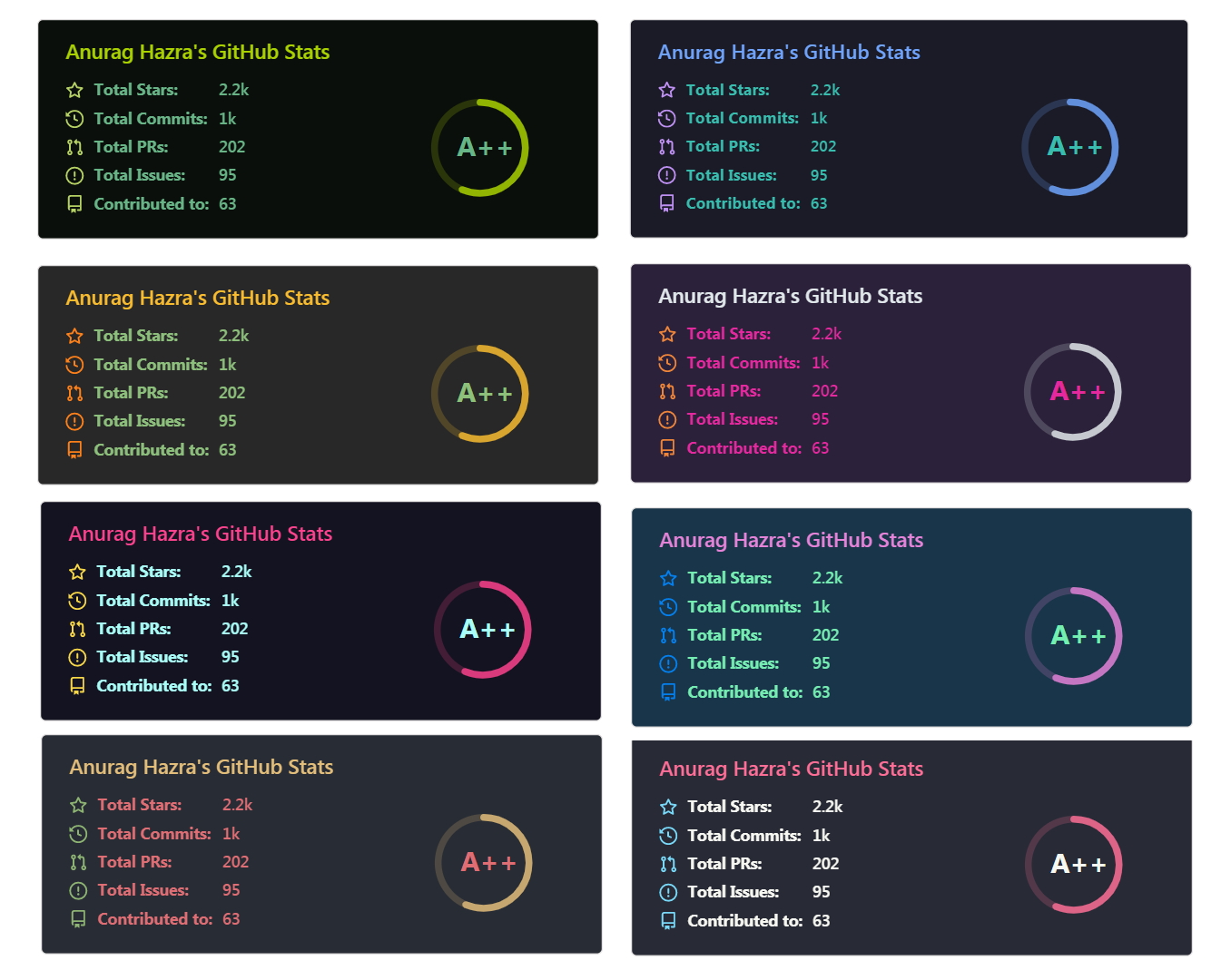
This image shows a summary of Mahbub Zaman's GitHub statistics.
Group⚓︎
Horizontal Images
Horizontal Images
Click To See Code
<p>
  <img src="https://images.unsplash.com/photo-1415604934674-561df9abf539?ixlib=rb-1.2.1&ixid=eyJhcHBfaWQiOjEyMDd9&auto=format&fit=crop&w=2772&q=80" width="100" height="100" alt="alt text"/>
  <img src="https://images.unsplash.com/photo-1415604934674-561df9abf539?ixlib=rb-1.2.1&ixid=eyJhcHBfaWQiOjEyMDd9&auto=format&fit=crop&w=2772&q=80" width="100" height="100" alt="alt text"/>
  <img src="https://images.unsplash.com/photo-1415604934674-561df9abf539?ixlib=rb-1.2.1&ixid=eyJhcHBfaWQiOjEyMDd9&auto=format&fit=crop&w=2772&q=80" width="100" height="100" alt="alt text"/>
</p>
Horizontal Images With Gap
Horizontal Images With Gap
Click To See Code
<p>
  <img src="https://images.unsplash.com/photo-1415604934674-561df9abf539?ixlib=rb-1.2.1&ixid=eyJhcHBfaWQiOjEyMDd9&auto=format&fit=crop&w=2772&q=80" width="100" height="100" hspace="5" alt="alt text"/>
  <img src="https://images.unsplash.com/photo-1415604934674-561df9abf539?ixlib=rb-1.2.1&ixid=eyJhcHBfaWQiOjEyMDd9&auto=format&fit=crop&w=2772&q=80" width="100" height="100" hspace="5" alt="alt text"/>
  <img src="https://images.unsplash.com/photo-1415604934674-561df9abf539?ixlib=rb-1.2.1&ixid=eyJhcHBfaWQiOjEyMDd9&auto=format&fit=crop&w=2772&q=80" width="100" height="100" hspace="5" alt="alt text"/>
</p>
Vertical Images
Vertical Images
Click To See Code
<p>
  <img src="https://images.unsplash.com/photo-1415604934674-561df9abf539?ixlib=rb-1.2.1&ixid=eyJhcHBfaWQiOjEyMDd9&auto=format&fit=crop&w=2772&q=80" width="100" height="100" alt="alt text"/>
<br>
  <img src="https://images.unsplash.com/photo-1415604934674-561df9abf539?ixlib=rb-1.2.1&ixid=eyJhcHBfaWQiOjEyMDd9&auto=format&fit=crop&w=2772&q=80" width="100" height="100" alt="alt text"/>
<br>
  <img src="https://images.unsplash.com/photo-1415604934674-561df9abf539?ixlib=rb-1.2.1&ixid=eyJhcHBfaWQiOjEyMDd9&auto=format&fit=crop&w=2772&q=80" width="100" height="100" alt="alt text"/>
</p>
Vertical images With Gap
Vertical images With Gap
Click To See Code
<p>
  <img src="https://images.unsplash.com/photo-1415604934674-561df9abf539?ixlib=rb-1.2.1&ixid=eyJhcHBfaWQiOjEyMDd9&auto=format&fit=crop&w=2772&q=80" width="100" height="100" alt="alt text"/>
<br>
  <img src="https://images.unsplash.com/photo-1415604934674-561df9abf539?ixlib=rb-1.2.1&ixid=eyJhcHBfaWQiOjEyMDd9&auto=format&fit=crop&w=2772&q=80" width="100" height="100" alt="alt text"/>
<br>
  <img src="https://images.unsplash.com/photo-1415604934674-561df9abf539?ixlib=rb-1.2.1&ixid=eyJhcHBfaWQiOjEyMDd9&auto=format&fit=crop&w=2772&q=80" width="100" height="100" alt="alt text"/>
</p>
Badges⚓︎
Badges
Videos⚓︎
Videos
To embed a video in Markdown, you need to first upload the video file and then reference it inline:
Lists⚓︎
Ordered⚓︎
Ordered
Mac: command+shift+7
Windows: control+shift+7
- One
- Two
- Three
1. First level
    1. Second level
        - Third level
            - Fourth level
2. First level
    1. Second level
3. First level
    1. Second level
- First level
- Second level
- Third level
- Fourth level
- Third level
- First level
- Second level
- First level
- Second level
Unordered⚓︎
Unordered
Mac: command+shift+8
Windows: control+shift+8
- 1
- 2
-
3
-
1
- 2
-
3
-
1
- 2
- 3
- First level
   - Second level
     - Third level
        - Fourth level
- First level
   - Second level
- First level
   - Second level
- First level
- Second level
- Third level
- Fourth level
- Third level
- Second level
- First level
- Second level
- First level
- Second level
- First item
- Second item
- Third item
- Fourth item
Task⚓︎
Task
- Fix Bug 223
- Add Feature 33
- Add unit tests
Buttons⚓︎
cmd + shift + p
cmd + shift + p
Button with Emoji⚓︎
Collapsible Items (28 July 2023)⚓︎
<details>
  <summary>Markdown</summary>

-  <kbd>[Markdown Editor](https://binarytree.dev/me)</kbd>
-  <kbd>[Table Of Content](https://binarytree.dev/toc)</kbd>
-  <kbd>[Markdown Table Generator](https://binarytree.dev/md_table_generator)</kbd>

</details>
Markdown
Horizontal Rule⚓︎
Diagrams (19 July 2022)⚓︎
Mathematical Expressions (19 July 2022)⚓︎
IMPORTANT!
Check out the official documentation on GitHub to learn more about writing and formatting MathJax syntax.
This is an inline math expression \(x = {-b \pm \sqrt{b^2-4ac} \over 2a}\)
Alerts (8 January 2024)⚓︎
> [!NOTE]
> Essential details that users should not overlook, even when browsing quickly.

<br>

> [!TIP]
> Additional advice to aid users in achieving better outcomes.

<br>

> [!IMPORTANT]
> Vital information required for users to attain success.

<br>

> [!WARNING]
> Urgent content that requires immediate user focus due to possible risks.

<br>

> [!CAUTION]
> Possible negative outcomes resulting from an action.
[!NOTE]
Essential details that users should not overlook, even when browsing quickly.
[!TIP]
Additional advice to aid users in achieving better outcomes.
[!IMPORTANT]
Vital information required for users to attain success.
[!WARNING]
Urgent content that requires immediate user focus due to possible risks.
[!CAUTION]
Possible negative outcomes resulting from an action.
Mention people and teams⚓︎
In issues:
In markdown file:
https://github.com/lifeparticle
Reference issues and pull requests⚓︎
In issues:
In markdown file:
https://github.com/lifeparticle/Markdown-Cheatsheet/issues/1
https://github.com/lifeparticle/Markdown-Cheatsheet/pull/10
https://github.com/lifeparticle/Markdown-Cheatsheet/issues/1
https://github.com/lifeparticle/Markdown-Cheatsheet/pull/10
Color models⚓︎
In issues:
View Code⚓︎
Click either the Code (top right) or Raw (top left) option to see the markdown code.
NOTE!
Make sure you have clicked the markdown file to see the above view.
Code in titles⚓︎
In issue, and pull request titles.
TEST ISSUE
Reference Labels⚓︎
Labels referenced by URLs in Markdown are now automatically rendered.
https://github.com/lifeparticle/Markdown-Cheatsheet/labels/documentation
Miscellaneous⚓︎
Comments⚓︎
Escaping Markdown Characters⚓︎
- Before escaping
* Asterisk

\ Backslash

` Backtick

{} Curly braces

. Dot

! Exclamation mark

# Hash symbol

- Hyphen symbol

() Parentheses

+ Plus symbol

[] Square brackets

_ Underscore`
- Asterisk Backslash ` Backtick {} Curly braces . Dot ! Exclamation mark
Hash symbol ⚓︎
- Hyphen symbol
() Parentheses
- Plus symbol
[] Square brackets _ Underscore
- After escaping
\* Asterisk
\\ Backslash
\` Backtick
\{} Curly braces
\. Dot
\! Exclamation mark
\# Hash symbol
\- Hyphen symbol
\() Parentheses
\+ Plus symbol
\[] Square brackets
\_ Underscore
* Asterisk \ Backslash ` Backtick {} Curly braces . Dot ! Exclamation mark # Hash symbol - Hyphen symbol () Parentheses + Plus symbol [] Square brackets _ Underscore
Emojis⚓︎
Complete list of github markdown emoji markup
Line break⚓︎
You can use <br> to insert a single line break. Make sure to use an em space . For example:
| The quick brown fox jumps over the lazy dog. |
Or
<table><tr><td> <br><br><br> The quick brown fox jumps over the lazy dog. <br><br><br> </td></tr></table>
| The quick brown fox jumps over the lazy dog. |
Back to top⚓︎
First place the following code at start of your markdown file
Then use one of the following code at the place you want to return to top.

Bitbucket⚓︎
Bitbucket Supported Markdown for READMEs. Also, create a table of contents.
Azure DevOps Project wiki⚓︎
Azure DevOps Supported Markdown for Project wiki.
MDX⚓︎
You can write JSX in your markdown document using MDX.
Tools⚓︎
- Create a Markdown table of content - binarytree, github-markdown-toc
- Create an empty Markdown table - Tablesgenerator
- Convert Excel to Markdown table - Tableconvert
- Markdown preview for Sublime Text 3 - Packagecontrol
- Markdown preview Visual Studio Code - Markdown Preview Enhanced
- A collection of awesome markdown goodies - Awesome Markdown
- Markdownlint - markdownlint, markdownlint-cli2, markdownlint-cli2-action, vscode-markdownlint
- A lightweight Python utility for converting various files to Markdown - Markitdown
- A SSE MCP server for calling MarkItDown - MarkItDown-MCP
| Author: | IGT Developers <igt-dev@lists.freedesktop.org> |
|---|---|
| Date: | 2023-01-27 |
| Version: | |PACKAGE_STRING| |
| Copyright: | 2009,2011,2012,2016,2018,2019,2020,2023,2025 Intel Corporation |
| Manual section: | |MANUAL_SECTION| |
| Manual group: | |MANUAL_GROUP| |
Basic writing and formatting syntax⚓︎
Create sophisticated formatting for your prose and code on GitHub with simple syntax.
Headings⚓︎
To create a heading, add one to six # symbols before your heading text. The number of # you use will determine the hierarchy level and typeface size of the heading.
When you use two or more headings, GitHub automatically generates a table of contents that you can access by clicking the "Outline" menu icon within the file header. Each heading title is listed in the table of contents and you can click a title to navigate to the selected section.
Styling text⚓︎
You can indicate emphasis with bold, italic, strikethrough, subscript, or superscript text in comment fields and .md files.
| Style | Syntax | Keyboard shortcut | Example | Output | |
|---|---|---|---|---|---|
| Bold | ** ** or __ __ |
Command+B (Mac) or Ctrl+B (Windows/Linux) | **This is bold text** |
This is bold text | |
| Italic | * * or _ _ |
Command+I (Mac) or Ctrl+I (Windows/Linux) | _This text is italicized_ |
This text is italicized | |
| Strikethrough | ~~ ~~ or ~ ~ |
None | ~~This was mistaken text~~ |
||
| Bold and nested italic | ** ** and _ _ |
None | **This text is _extremely_ important** |
This text is extremely important | |
| All bold and italic | *** *** |
None | ***All this text is important*** |
All this text is important | |
| Subscript | <sub> </sub> |
None | This is a <sub>subscript</sub> text |
This is a subscript text | |
| Superscript | <sup> </sup> |
None | This is a <sup>superscript</sup> text |
This is a superscript text | |
| Underline | <ins> </ins> |
None | This is an <ins>underlined</ins> text |
This is an underlined text |
Quoting text⚓︎
You can quote text with a >.
Quoted text is indented with a vertical line on the left and displayed using gray type.
NOTE!
When viewing a conversation, you can automatically quote text in a comment by highlighting the text, then typing R. You can quote an entire comment by clicking , then Quote reply. For more information about keyboard shortcuts, see Keyboard shortcuts.
Quoting code⚓︎
You can call out code or a command within a sentence with single backticks. The text within the backticks will not be formatted. You can also press the Command+E (Mac) or Ctrl+E (Windows/Linux) keyboard shortcut to insert the backticks for a code block within a line of Markdown.
To format code or text into its own distinct block, use triple backticks.
For more information, see Creating and highlighting code blocks.
If you are frequently editing code snippets and tables, you may benefit from enabling a fixed-width font in all comment fields on GitHub. For more information, see About writing and formatting on GitHub.
Supported color models⚓︎
In issues, pull requests, and discussions, you can call out colors within a sentence by using backticks. A supported color model within backticks will display a visualization of the color.
Here are the currently supported color models.
| Color | Syntax | Example | Output |
|---|---|---|---|
| HEX | `#RRGGBB` |
`#0969DA` |
|
| RGB | `rgb(R,G,B)` |
`rgb(9, 105, 218)` |
|
| HSL | `hsl(H,S,L)` |
`hsl(212, 92%, 45%)` |
NOTE!
- A supported color model cannot have any leading or trailing spaces within the backticks.
- The visualization of the color is only supported in issues, pull requests, and discussions.