Setting Up Versioning
Setting up versioning
-
MaterialX for MkDocs makes it easy to deploy multiple versions of your project documentation by integrating with external utilities that add those capabilities to MkDocs, i.e. mike.
-
When deploying a new version, older versions of your documentation remain untouched.
Back to: #Advanced-Configuration
Configuration⚓︎
Versioning⚓︎
Versioning
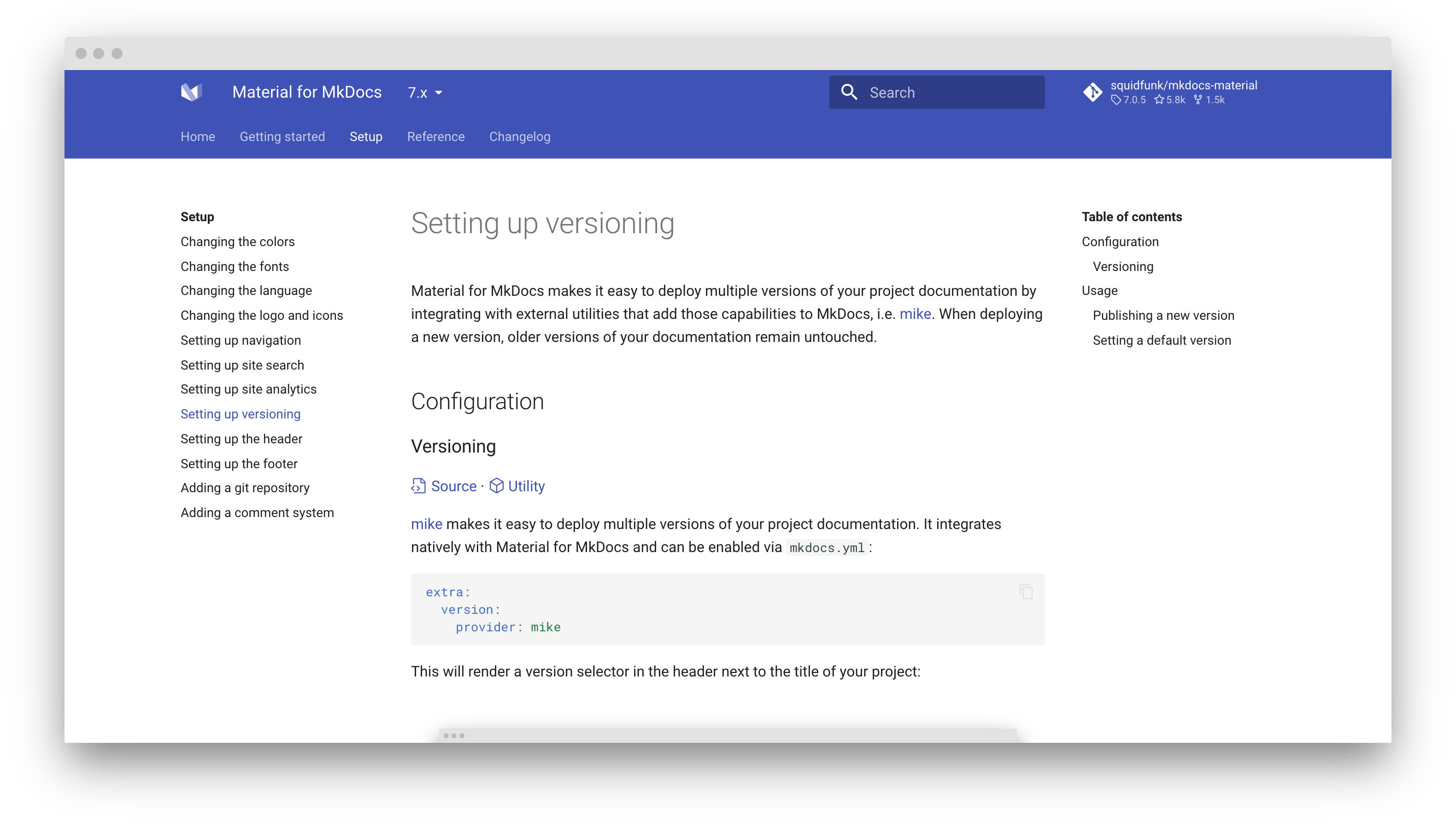
mike makes it easy to deploy multiple versions of your project documentation. It integrates natively with Material for MkDocs and can be enabled via mkdocs.yml:
This renders a version selector in the header:
Check out the versioning example to see it in action –
mkdocs-material.github.io/example-versioning
-
mike is built around the idea that once you've generated your docs for a particular version, you should never need to touch that version again. This means you never have to worry about breaking changes in MkDocs, since your old docs (built with an old version of MkDocs) are already generated and sitting in your
gh-pagesbranch. -
While mike is flexible, it's optimized around putting your docs in a
<major>.<minor>directory, with optional aliases (e.g.latestordev) to particularly notable versions. This makes it easy to make permalinks to whatever version of the documentation you want to direct people to.
Stay on the Same Page when Switching Versions⚓︎
Switching Versions
When the user chooses a version in the version selector, they usually want to go to the page corresponding to the page they were previously viewing. Material for MkDocs implements this behavior by default, but there are a few caveats:
-
the [
site_url][mkdocs.site_url] must be set correctly inmkdocs.yml.
See the "Publishing a new version" section for an example. -
the redirect happens via JavaScript and there is no way to know which page you will be redirected to ahead of time.
Version Warning⚓︎
Version Warning
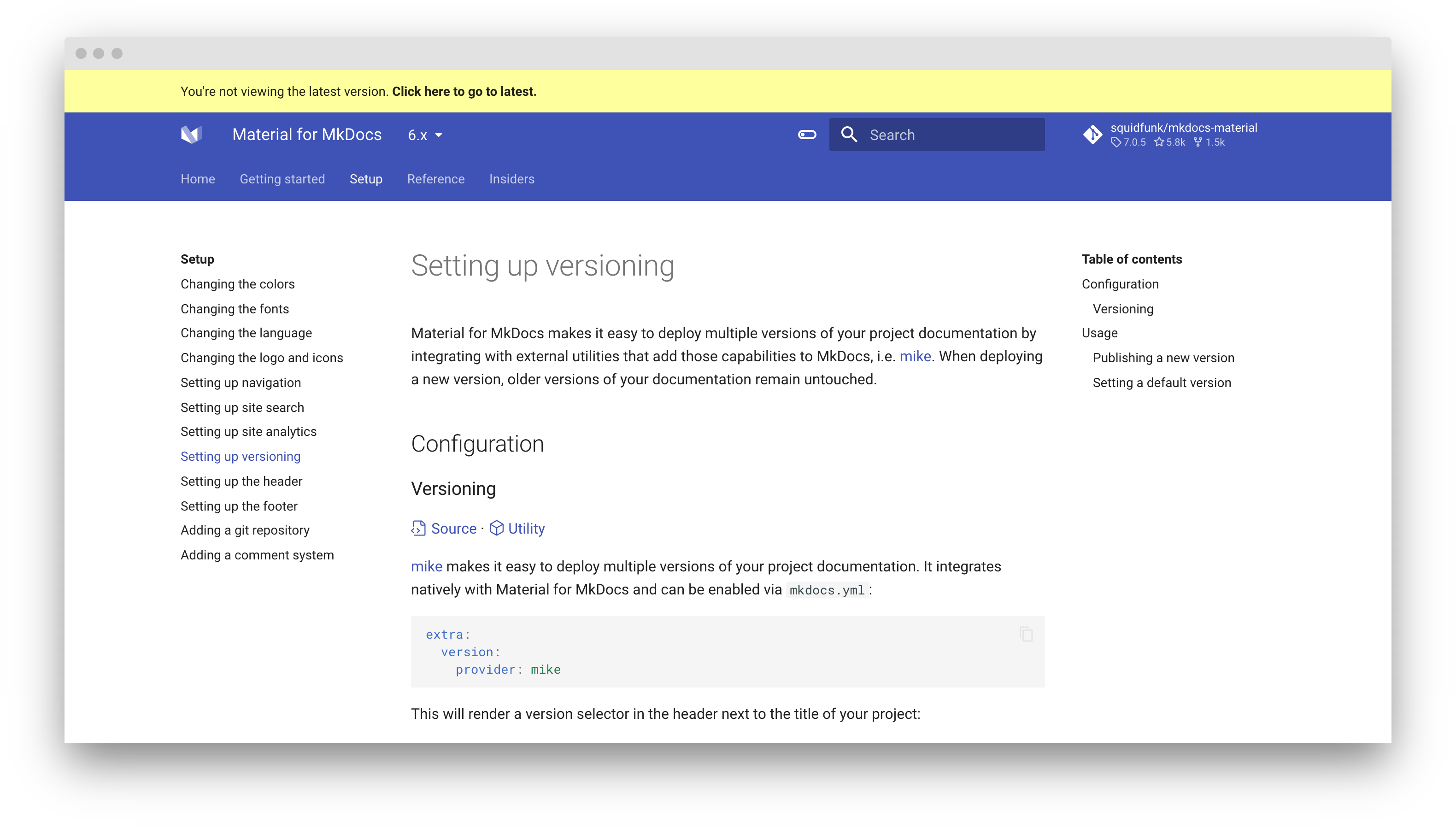
If you're using versioning, you might want to display a warning when the user visits any other version than the latest version. Using theme extension, you can override the outdated block:
{% extends "base.html" %}

{% block outdated %}
  You're not viewing the latest version.
  <a href="{{ '../' ~ base_url }}"> <!-- (1)! -->
    <strong>Click here to go to latest.</strong>
  </a>
{% endblock %}
- Given this value for the
hrefattribute, the link will always redirect to the root of your site, which will then redirect to the latest version. This ensures that older versions of your site do not depend on a specific alias, e.g.latest, to allow for changing the alias later on without breaking earlier versions.
This will render a version warning above the header:
Default Version ID
The default version is identified by the latest alias. If you wish to set another alias as the latest version, e.g.stable, add the following lines to mkdocs.yml:
-
You can also define multiple aliases as the default version,
e.g.stableanddevelopment.Now every version that has the
stableanddevelopmentaliases
will not display the version warning.
Make sure one alias matches the default version, as this is where users are redirected to.
Version Alias⚓︎
Version Alias
If you're using aliases for versioning, and want to show the version alias besides the version number, you can enable this feature by setting the alias option to true:
Usage⚓︎
Usage
While this section outlines the basic workflow for publishing new versions, it's best to check out mike's documentation to make yourself familiar with its mechanics.
Publishing a New Version⚓︎
Publishing a New Version
If you want to publish a new version of your project documentation, choose a version identifier and update the alias set as the default version with:
Note that every version will be deployed as a subdirectory of your site_url, which you should set explicitly. For example, if your mkdocs.yml contains:
the documentation will be published to URLs such as:
- docs.example.com/0.1/
- docs.example.com/0.2/
- ...
Setting a Default Version⚓︎
Setting a Default Version
When starting with mike, a good idea is to set an alias as a default version, e.g. latest, and when publishing a new version, always update the alias to point to the latest version:
When publishing a new version, mike will create a redirect in the root of your project documentation to the version associated with the alias:
docs.example.com docs.example.com/0.1