Setting up Tags
Setting up tags
MaterialX for MkDocs adds first-class support for categorizing pages with tags, which adds the possibility to group related pages and make them discoverable via search and a dedicated tags index. If your documentation is large, tags can help to discover relevant information faster.
Back to: #Advanced-Configuration
Configuration⚓︎
Built-in Tags Plugin⚓︎
The built-in tags plugin adds the ability to categorize any page with tags as part of the front matter of the page. In order to add support for tags, add the following lines to mkdocs.yml:
For a list of all settings, please consult the plugin documentation.
Tag Icons and Identifiers⚓︎
Built-in Tags Plugin
Each tag can be associated with an icon, which is then rendered inside the tag. Before assigning icons to tags, associate each tag with a unique identifier, by adding the following to mkdocs.yml:
- The identifier can only include alphanumeric characters, as
well as dashes and underscores. For example, if you have a
tagCompatibility, you can setcompatas an identifier:
Built-in Tags Plugin
Identifiers can be reused between tags. Tags which are not explicitly associated will use the default tag icon which is
Identifiers
Next, each identifier can be associated with an icon, even a [custom icon], by adding the following lines to mkdocs.yml under the theme.icon configuration setting:
Custom Tag Icons
Usage⚓︎
Adding Tags⚓︎
Adding Tags
When the built-in tags plugin is enabled, tags can be added for a document
with the front matter tags property. Add the following lines at the top of a
Markdown file:
The page will now render with those tags above the main headline and within the
search preview, which now allows to find pages by tags.
How to set tags for an entire folder?
With the help of the built-in meta plugin, you can ensure that tags are set for an entire section and all nested pages, by creating a .meta.yml file in the corresponding folder with the following content:
The tags set in .meta.yml are merged and deduplicated with the tags defined for a page, which means you can define common tags in .meta.yml and then add specific tags for each page. The tags in .meta.yml are appended.
Adding a Tags Index⚓︎
Adding a Tags Index
The built-in tags plugin allows to define a file to render a tags index, which can be any page that is part of the nav section. To add a tags index, create a page, e.g. tags.md:
The tags marker specifies the position of the tags index, i.e. it is replaced with the actual tags index when the page is rendered. You can include arbitrary content before and after the marker:
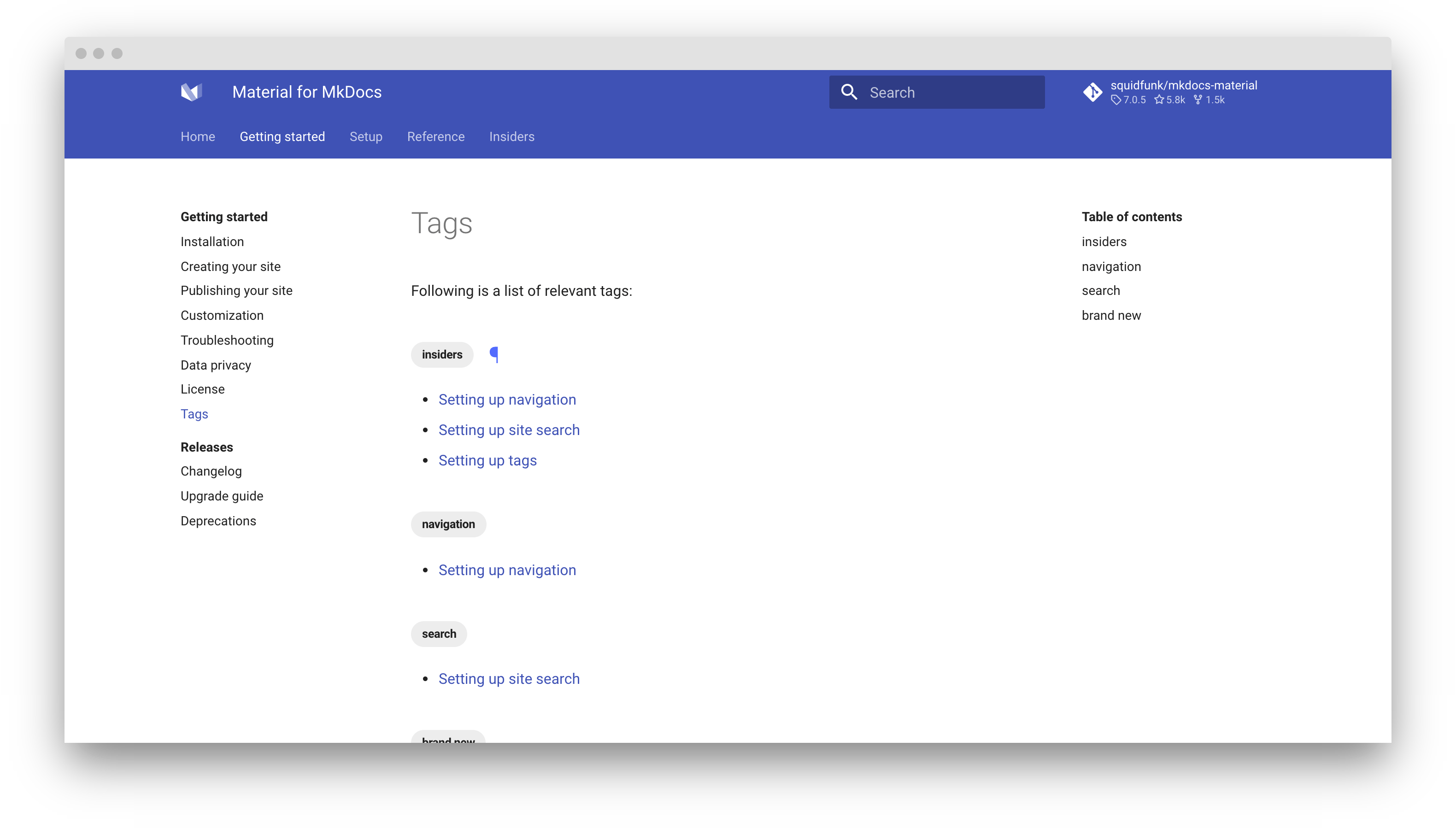
Advanced Features⚓︎
Configurable listings⚓︎
Configurable Listings
Listings can be configured in mkdocs.yml or directly at the location of the marker that you position in a Markdown document. Some examples:
-
Use [scoped listings]: limit the tags index to pages that are on the same level of the subsection of the documentation the page is in:
-
List only specific tags: limit the tags index to a single or multiple selected tags, e.g.,
FooandBar, excluding all other tags:
-
Exclude pages with specific tags: don't include pages that are tagged
with specific tags, e.g.Internal. This can be any tag, including a shadow
tag:
-
Enable or disable tags inside the table of contents: specify whether the table of contents lists all tags under the nearest headline:
See the listing configuration for all options.
Scoped Listings⚓︎
Scoped listings
If your documentation is large, you might want to consider using scoped listings which will only include pages that are on the same level or below the page containing the listing. Just use:
Multiple Scoped Indexes
If you plan to use multiple scoped indexes, it's a good idea to define a listing configuration in mkdocs.yml, which you can then reference by its id:
Shadow Tags⚓︎
Shadow Tags
Shadow tags are tags that are solely meant to organization, which can be included or excluded for rendering with a simple flag. They can be enumerated in the shadow_tags setting:
If a document is tagged with Draft, the tag will only be rendered if shadow setting is enabled, and excluded when it is disabled. This is an excellent opportunity for using tags for structuring.
Nested Tags⚓︎
Nested Tags
The tags_hierarchy_separator allows to create hierarchies of tags, e.g., Foo/Bar. Nested tags will be rendered as children of the parent tag:
Hiding Tags on a Page⚓︎
Hiding Tags on a Page
While the tags are rendered above the main headline, sometimes, it might be desirable to hide them for a specific page, which can be achieved with the front matter hide property:
Suggested Useful Configurations
-
GitHub Wiki:
(e.g.https://github.com/project/repo/wiki/foo/bar/_edit) -
BitBucket editor:
(e.g.https://bitbucket.org/project/repo/src/master/docs/foo/bar.md?mode=edit) -
GitLab Static Site Editor:
(e.g.https://gitlab.com/project/repo/-/sse/master/docs%2Ffoo%2bar.md) -
GitLab Web IDE:
(e.g.https://gitlab.com/-/ide/project/repo/edit/master/-/docs/foo/bar.md)