Creating Your Site
After Installation
After Installation.⚓︎
After you've installed Material for MkDocs, you can bootstrap your project documentation using the mkdocs executable. Go to the directory where you want your project to be located and enter:
Docker Use
Docker Use.⚓︎
Alternatively, if you're running Material for MkDocs from within Docker, use:
File Structure Created
This will create the following structure:⚓︎
Configuration⚓︎
Minimal Configuration⚓︎
Minimal Configuration
Simply set the site_name and add the following lines to mkdocs.yml to enable the theme:
The site_url setting is important for a number of reasons. By default, MkDocs will assume that your site is hosted at the root of your domain. This is not the case, for example, when [publishing to GitHubpages] - unless you use a custom domain. Another reason is that some of the plugins require the site_url to be set, so you should always do this.
Recommended: configuration validation and auto-complete
In order to minimize friction and maximize productivity, Material for MkDocsprovides its own schema.json1 for mkdocs.yml. If your editor supports YAML schema validation, it's definitely recommended to set it up:
- Install
vscode-yamlfor YAML language support. -
Add the schema under the
yaml.schemaskey in your user or workspacesettings.json:{ "yaml.schemas": { "https://squidfunk.github.io/mkdocs-material/schema.json": "mkdocs.yml" }, "yaml.customTags": [ // (1)! "!ENV scalar", "!ENV sequence", "!relative scalar", "tag:yaml.org,2002:python/name:material.extensions.emoji.to_svg", "tag:yaml.org,2002:python/name:material.extensions.emoji.twemoji", "tag:yaml.org,2002:python/name:pymdownx.superfences.fence_code_format", "tag:yaml.org,2002:python/object/apply:pymdownx.slugs.slugify mapping" ] } -
This setting is necessary if you plan to use icons and emojis, or Visual Studio Code will show errors on certain lines.
Advanced Configuration⚓︎
Material for MkDocs comes with many configuration options. The setup section explains in great detail how to configure and customize colors, fonts, icons and much more:
-
Changing the Colors
View GuideCustomise primary and accent colors to match your brand identity.
-
Changing the Fonts
View GuideConfigure Google Fonts or custom web fonts for typography.
-
Changing the Language
View GuideLocalize your site interface and search into 50+ languages.
-
Changing the Logo
View GuideSet a custom logo and choose from thousands of integrated icons.
-
Data Privacy
View GuideEnable GDPR-compliant features and cookie consent management.
-
Site Navigation
View GuideDefine your site structure, tabs, and table of contents behavior.
-
Site Search
View GuideConfigure the built-in search engine with highlighting and indexing.
-
Site Analytics
View GuideIntegrate Google Analytics or other privacy-focused tracking tools.
-
The Header
View GuideCustomize the sticky header, search bar, and repository links.
-
The Footer
View GuideManage "Previous/Next" buttons and the copyright notice area.
-
Social Cards
View GuideGenerate automatic preview images for Twitter and LinkedIn shares.
-
Setting up a Blog
View GuideTransform your documentation into a fully-featured technical blog.
-
Setting up Tags
View GuideOrganize content with categories and tags for easier discovery.
-
Versioning
View GuideHost multiple versions of your documentation simultaneously.
-
Git Repository
View GuideLink your source code to enable "Edit this page" functionality.
-
Comment System
View GuideIntegrate Giscus or Disqus to build community engagement.
-
Optimization
View GuideMinify CSS/JS and optimize images for lightning-fast loading.
-
Offline Usage
View GuidePackage your documentation for use without an internet connection.
Furthermore, see the list of supported Markdown extensions that are natively integrated with Material for MkDocs, delivering an unprecedented low-effort technical writing experience.
Configuration Template⚓︎
If you find it tedious to configure them one by one, you can use the configuration template that this site uses itself to lower the barrier to entry.
Download mkdocs.yml and replace the personalized parts in the template with your own, and leave all other options unchanged.
#---- 1. Site config ----

site_name: MaterialX
site_url: https://jaywhj.github.io/mkdocs-materialx/
site_author: Aaron Wang
site_description: >-
  Born for documents, yet beyond documents.
  Accessible to everyone, extremely easy to use.
  Modern, lightweight, customizable, responsive.

repo_name: jaywhj/mkdocs-materialx
repo_url: https://github.com/jaywhj/mkdocs-materialx
edit_uri: edit/main/docs/

copyright: Copyright © 2016 - 2026 Aaron Wang

extra:
  status:
    new: Recently updated
    deprecated: Deprecated
  social:
    - icon: fontawesome/brands/github
      link: https://github.com/jaywhj
      name: GitHub
    - icon: material/email
      link: mailto:junewhj@qq.com
      name: Email
    - icon: fontawesome/brands/discord
      link: https://discord.gg/cvTfge4AUy
      name: Discord


#---- 2. Page tree ----

use_directory_urls: false
exclude_docs: |
  archives/
#  /drafts/
# not_in_nav: |
#   /tutorials/**/*.md

nav:
  - Home: index.md
  - Get started:
    - Differences: differences.md
    - Installation: installation.md
  - Setup:
    - setup/index.md
    - Colors: setup/changing-the-colors.md
    - Extensions:
      - setup/extensions/index.md
      - Markdown: setup/extensions/python-markdown.md


#---- 3. Theme ----

theme:
  name: materialx
  custom_dir: material/overrides
  code:
    fold:
      enabled: true
  features:
    - content.action.edit
    - content.action.view
    - content.action.agents
    - content.code.annotate
    - content.code.copy
    # - content.code.select
    # - content.tabs.link
    - content.footnote.tooltips
    - content.tooltips

    - navigation.tabs
    # - navigation.tabs.sticky
    # - navigation.top
    # - navigation.tracking
    # - navigation.expand
    # - navigation.indexes
    # - navigation.instant
    # - navigation.instant.prefetch
    # - navigation.instant.progress
    # - navigation.prune
    - navigation.sections
    - navigation.footer

    - search.highlight
    - search.share
    - search.suggest

    - toc.follow
    # - toc.integrate

  # topbar_style: primary   # glass primary accent
  palette:
    - media: "(prefers-color-scheme)"
      toggle:
        icon: material/brightness-auto
        name: Switch to light mode
    - media: "(prefers-color-scheme: light)"
      scheme: default
      primary: blue
      accent: light blue
      toggle:
        icon: material/weather-sunny
        name: Switch to dark mode
    - media: "(prefers-color-scheme: dark)"
      scheme: slate
      primary: cyan
      accent: cyan
      toggle:
        icon: material/brightness-4
        name: Switch to system preference

  language: en
  font: false
  favicon: octicons/milestone-24
  icon:
    logo: logo
  admonition:
    git:
      icon: simple/git
      color: '#f34f29'
    copyright:
      icon: material/copyright
      color: '#2b9b9b'
    heart:
      icon: octicons/heart-24
      color: '#9b2b9b'
    lyrics:
      icon: material/microphone
      color: '#2b2b9b'
    soundcloud:
      icon: simple/soundcloud
      color: '#ff7700'


#---- 4. Plugins ----

plugins:
  # - blog
  # - tags
  - offline
  - search
  - glightbox

  - document-dates:
      type: timeago
      exclude: ['index.md', 'license.md', '*/index.md', 'blog/*']
      recently-updated:
        limit: 10
        exclude: ['index.md', 'blog/*']


#---- 5. Extensions ----

markdown_extensions:
  - nl2br
  - abbr
  - admonition
  - attr_list
  - def_list
  - footnotes
  - md_in_html
  - toc:
      toc_depth: 4
      permalink: true
  - pymdownx.arithmatex:
      generic: true
  - pymdownx.betterem
  - pymdownx.caret
  - pymdownx.details
  - pymdownx.emoji:
      emoji_generator: !!python/name:material.extensions.emoji.to_svg
      emoji_index: !!python/name:material.extensions.emoji.twemoji
  - pymdownx.highlight:
      anchor_linenums: true
      line_spans: __span
      pygments_lang_class: true
      # linenums: true
      # linenums_style: pymdownx-inline
  - pymdownx.inlinehilite
  - pymdownx.keys
  - pymdownx.mark
  - pymdownx.smartsymbols
  - pymdownx.superfences:
      relaxed_headers: true
      custom_fences:
        - name: mermaid
          class: mermaid
          format: !!python/name:pymdownx.superfences.fence_code_format
  - pymdownx.tabbed:
      alternate_style: true
      combine_header_slug: true
      slugify: !!python/object/apply:pymdownx.slugs.slugify
        kwds:
          case: lower
  - pymdownx.tasklist:
      custom_checkbox: true
  - pymdownx.tilde
  # - material.extensions.code_download


#---- 6. ----

# extra_javascript:
#   - javascripts/extra.js
# extra_css:
#   - stylesheets/extra.css
Templates⚓︎
Starting a New Project
If you want to jump start a new project, you can use one of our growing collection of templates:
-
Create a blog
-
Create documentation with social cards


Previewing as you Write⚓︎
Previewing as you Write
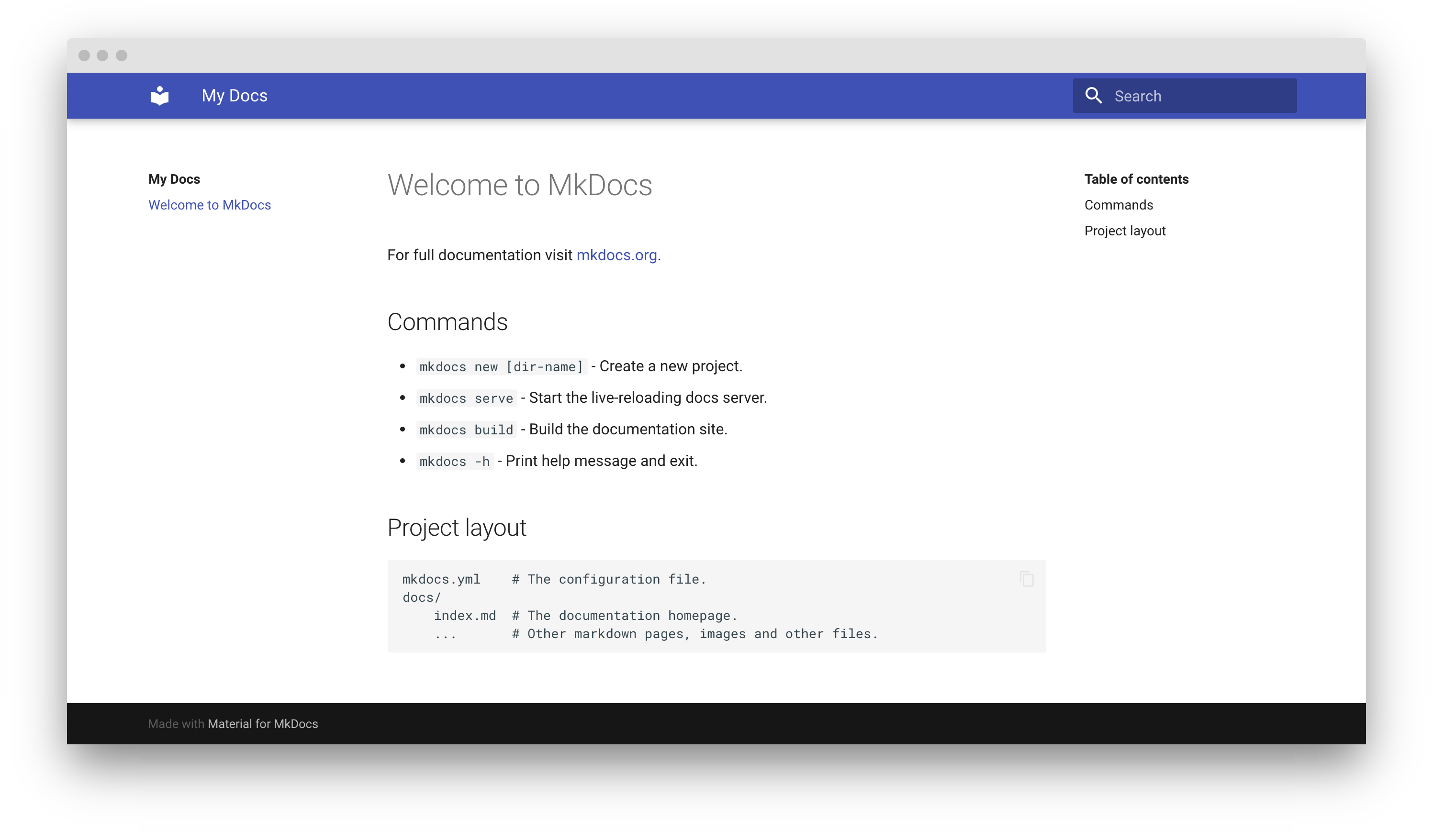
MkDocs includes a live preview server, so you can preview your changes as you write your documentation. The server will automatically rebuild the site upon saving. Start it with:
-
If you have a large documentation project, it might take minutes
until MkDocs has rebuilt all pages for you to preview. If you're only
interested in the current page, the--dirtyreloadflag will make
rebuilds much faster:
If you're running Material for MkDocs from within Docker, use:
Point your browser to localhost:8000 and you should see:
Building your Site⚓︎
Building your Site
When you're finished editing, you can build a static site from your Markdown files with:
If you're running Material for MkDocs from within Docker, use:
The contents of this directory make up your project documentation. There's no need for operating a database or server, as it is completely self-contained. The site can be hosted on GitHub Pages, GitLab Pages, a CDN of your choice or your private web space.
Read more about building for offline usage
If you intend to distribute your documentation as a set of files to be read from a local filesystem rather than a web server (such as in a .zip file), please read the notes about building for offline usage.
-
If you're a MkDocs plugin or Markdown extension author and your project works with Material for MkDocs, you're very much invited to contribute a schema for your extension or plugin as part of a pull request on GitHub. If you already have a schema defined, or wish to self-host your schema to reduce duplication, you can add it via $ref. ↩